



Use calendar in other apps.
Your training program can be exported to a *.csv file by selecting File->Save training calendar... in the menu. This file can be
imported in e.g. Google calendar so that you have your training plan available wherever you are. Follow these steps to import the *.csv file
to Google Calendar:
- Open Google Calendar on a computer.
- Click on the arrow to the right of "My Calendars" and select "Create New Calendar".

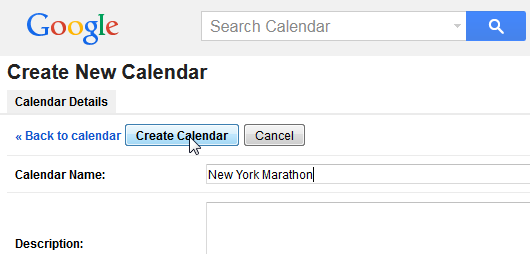
- Enter a Calendar Name and click "Create Calendar".
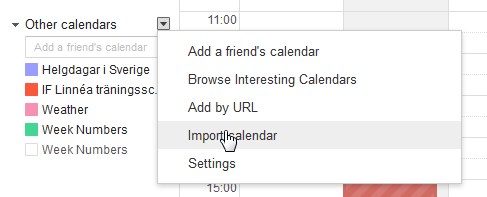
- Click on the arrow to the right of "Other Calendars" and select "Import Calendar".
- Browse to the *.csv file and click Open in the file menu. Select your newly created Calendar, e.g. "New York Marathon", in the
drop down list to the right of "Calendar" and click Import.

- You will see a confirmation window like this.

Since you have put your training in a separate calendar it is easy to delete the training plan if you change your mind:
- Click on the arrow that will appear to the right of the Calendar name when the cursor is over it and select "Edit calendar".
- You have many options to change settings for the calendar, including a handy code snippet to include you calendar in an HTML page ("Embed this calendar").
To delete the clanedar, however, you choose "Permanently delete this calendar" under "Delete calendar".

- Confirm your choice in the next dialog.
